1. Intelligent Signage Introduction
The Xathari Intelligent Signage Platform gives businesses a powerful, cloud‑based workspace for managing digital screens across one or many locations. Whether you’re updating menu boards, scheduling promotional content, deploying interactive experiences, or managing a full network of displays, the platform provides the tools to organize media, build playlists, schedule content, and monitor device health — all from a centralized CMS environment.
Xathari Intelligent Signage is built on a dedicated, secure content‑management system designed specifically for digital signage workflows. It supports:
- Media uploads (images, videos, HTML, widgets, and more)
- Playlist creation and scheduling
- Screen and player management
- Layouts and templates
- Real‑time device monitoring
- Multi‑location content deployment
- User roles and workspace permissions
** Demonstration data. The information shown in the example above uses sample content for illustrative purposes only. Actual data, features, and screen layouts may vary based on your subscription tier and account permissions. **
1.1 Accessing the Intelligent Signage CMS
The Intelligent Signage Platform operates on its own secure authentication layer, separate from the main Xathari dashboard. This ensures that signage content, devices, and workspace permissions remain isolated and protected.
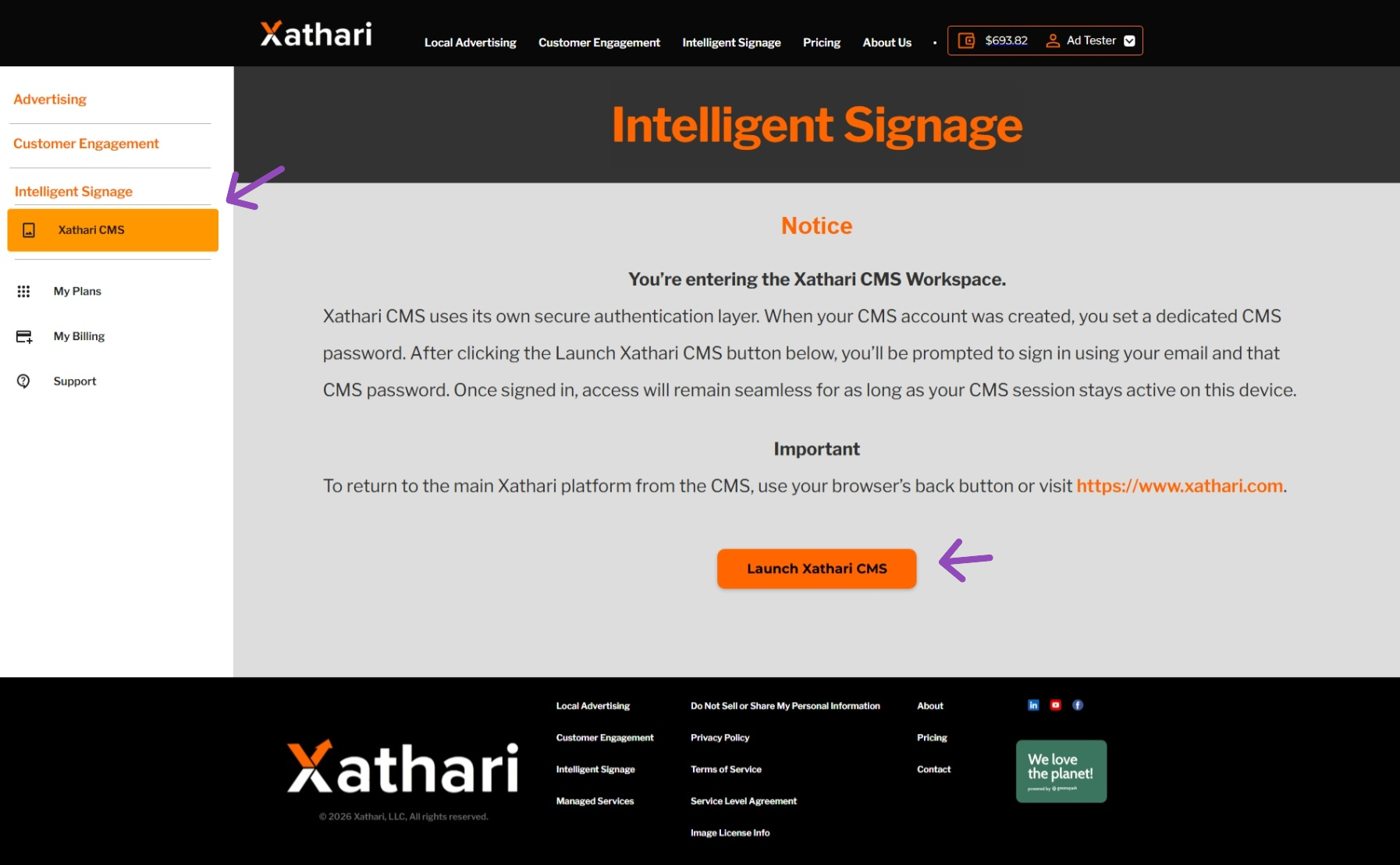
When you click Intelligent Signage from the main Xathari dashboard, you’ll see a notice explaining the login flow:
“You’re entering the Xathari CMS Workspace. Xathari CMS uses its own secure authentication layer. When your CMS account was created, you set a dedicated CMS password. After clicking the Launch Xathari CMS button below, you’ll be prompted to sign in using your email and that CMS password. Once signed in, access will remain seamless for as long as your CMS session stays active on this device.”
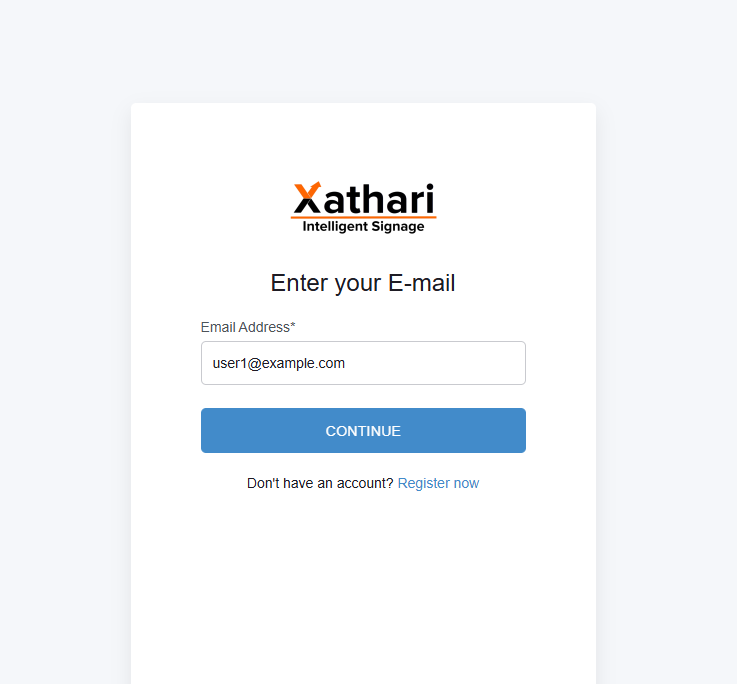
After clicking Launch Xathari CMS, you’ll see the login screen.
** Demonstration data. The information shown in the example above uses sample content for illustrative purposes only. Actual data, features, and screen layouts may vary based on your subscription tier and account permissions. **
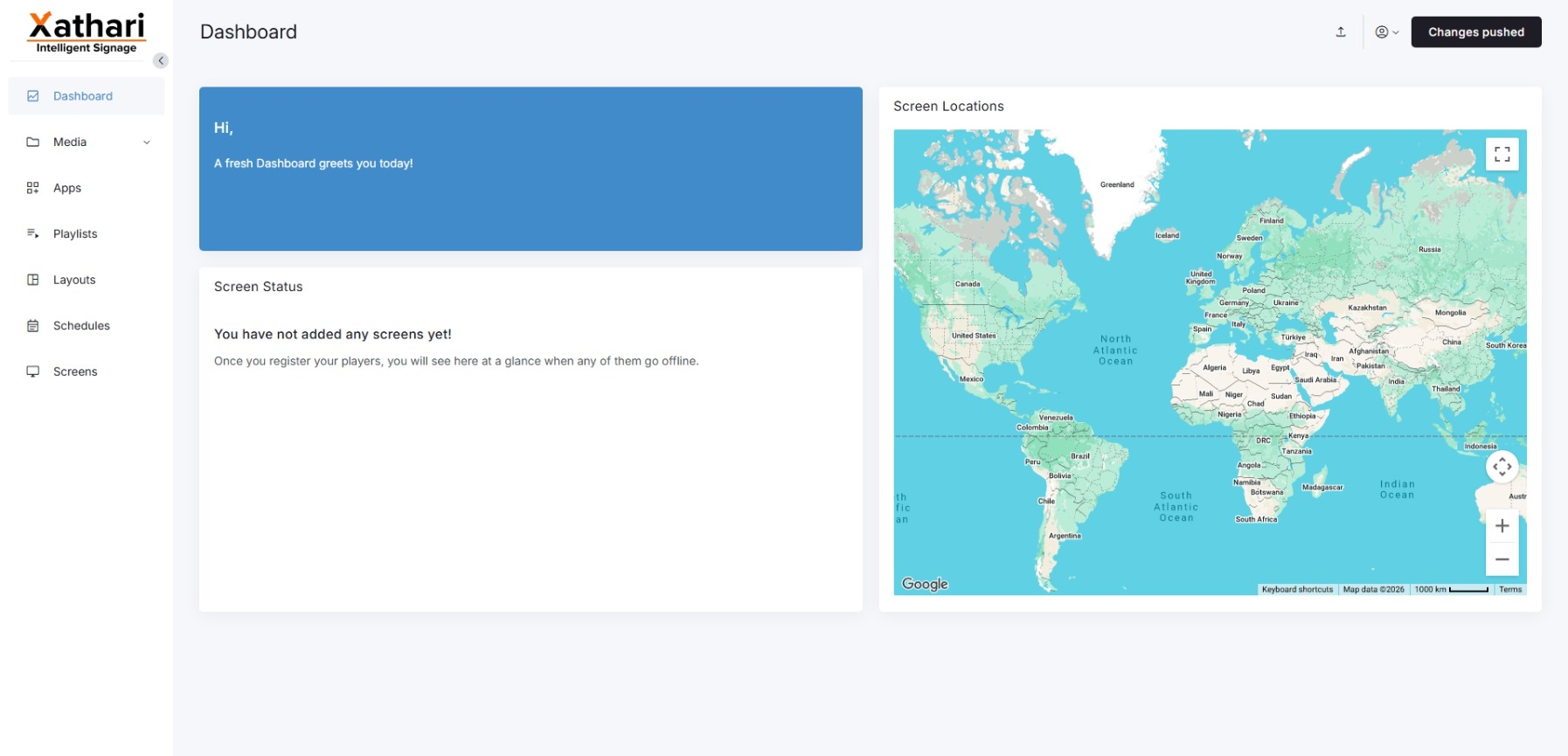
Your email address may already appear in the login form. If not, enter the business email you used when signing up for Intelligent Signage. Note again that the Xathari CMS app requires another password that you should have received in your email when you first signed up for / activated the intelligent signage subscription. If you’ve changed the password (recommended), then use your updated Xathari CMS password to access the Xathari Intelligent Signage CMS dashboard.
** Demonstration data. The information shown in the example above uses sample content for illustrative purposes only. Actual data, features, and screen layouts may vary based on your subscription tier and account permissions. **
To return to the main Xathari platform at any time, use your browser’s back button or visit https://www.xathari.com.
1.2 Intelligent Signage Documentation
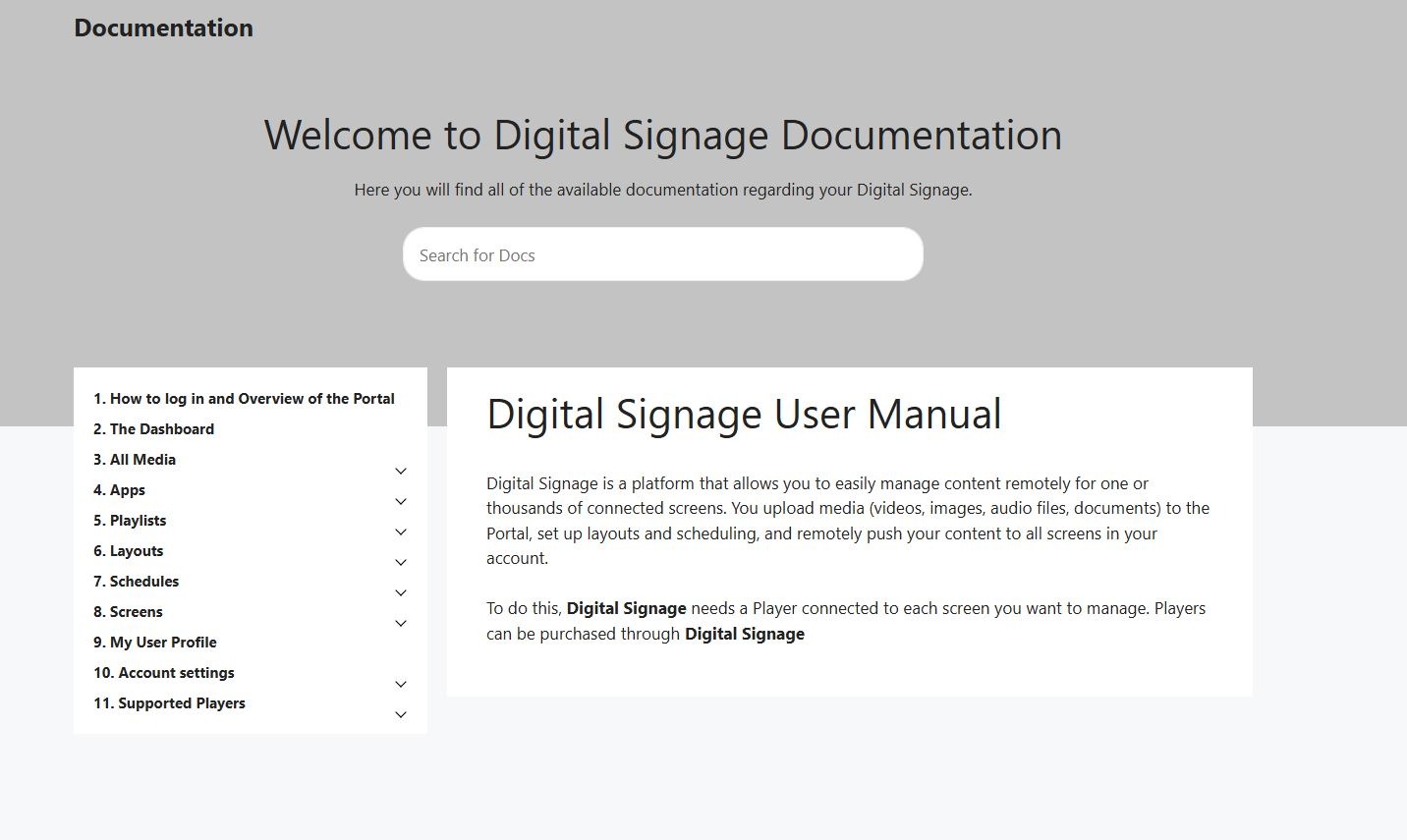
The full documentation for the Intelligent Signage CMS — including media management, playlists, widgets, layouts, device setup, and workspace administration — is available at:
👉 https://cms.xathari.com/docs
This link takes you directly to the official CMS Knowledge Base, where you’ll find step‑by‑step guides, screenshots, and examples for every feature in the signage platform.
** Demonstration data. The information shown in the example above uses sample content for illustrative purposes only. Actual data, features, and screen layouts may vary based on your subscription tier and account permissions. **