3. Creating an Engagement Campaign
Engagement campaigns define the QR code, tracking parameters, and destination URL.
Start a New Engagement Campaign
- Go to Customer Engagement → Engagement Campaigns
- Click + Create New Engagement Campaign (blue link to the right of “Your Customer Engagement Campaigns”)
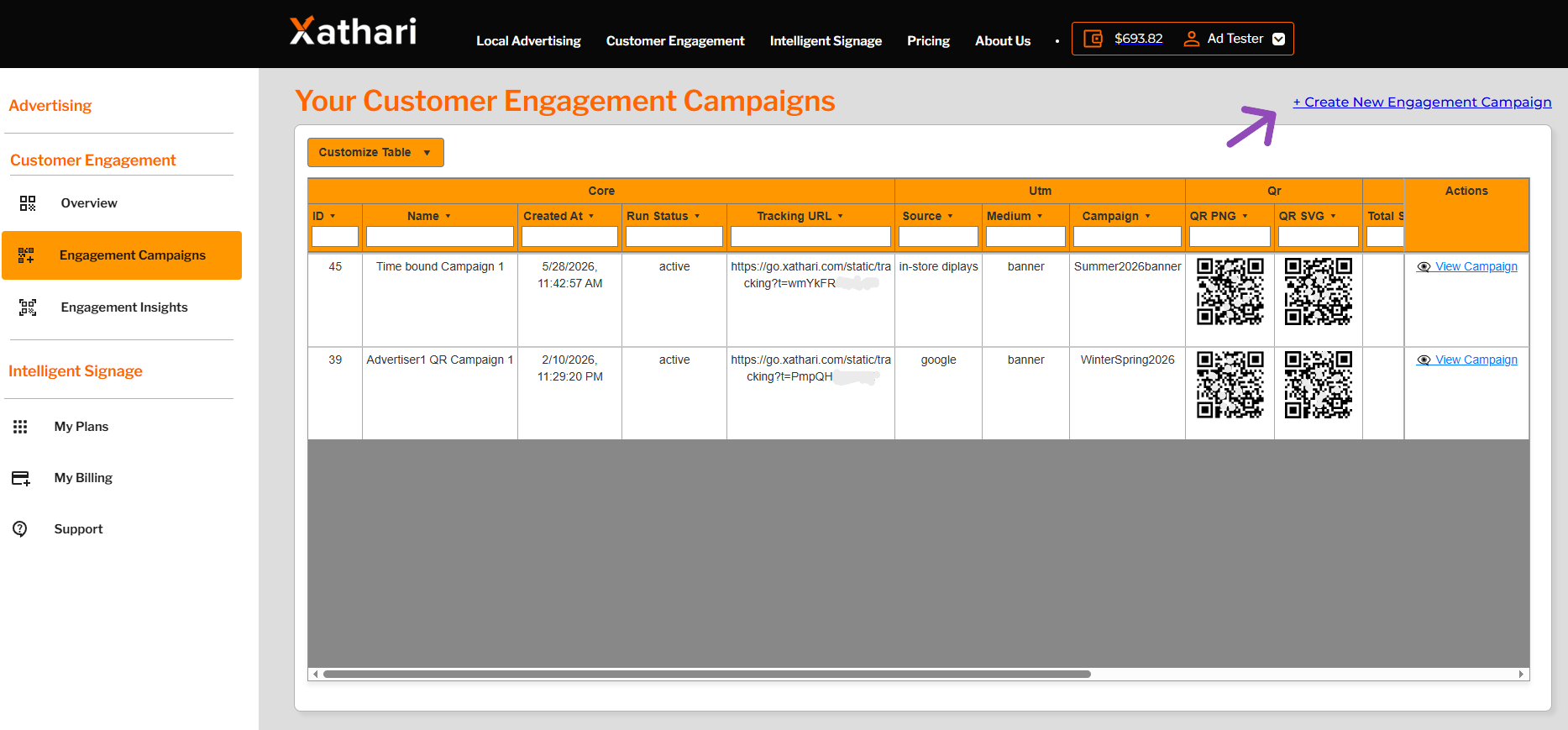
** Demonstration data. The information shown in the example above uses sample content for illustrative purposes only. Actual data, features, and screen layouts may vary based on your subscription tier and account permissions. **
Campaign Setup Fields
Campaign Name
Use a short, descriptive name (e.g., “Spring Sale – In‑Store”).
Time‑Bound QR Code
Choose whether the QR code should expire.
- Yes → Set start and end dates
- No → QR code never expires
UTM Parameters
These fields automatically build your campaign’s UTM URL:
- UTM Source (e.g., instore_display, google)
- UTM Medium (e.g., email, banner)
- UTM Campaign (short, one‑word descriptor like spring_sale)
Landing Page URL
The destination URL for your campaign.
CEP uses this to generate both the UTM URL and the tracking URL.
Submit Your Campaign
Click Create Campaign. You’ll be redirected to the Your Customer Engagement Campaign page.